Viewing 3D Models
DAIMIA Connector enables users to view and interact with 3D models and assemblies directly within the Viewer Tab.
Load a 3D Model
-
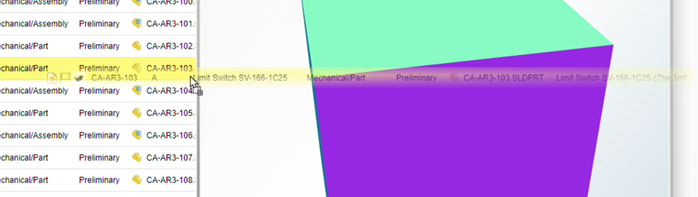
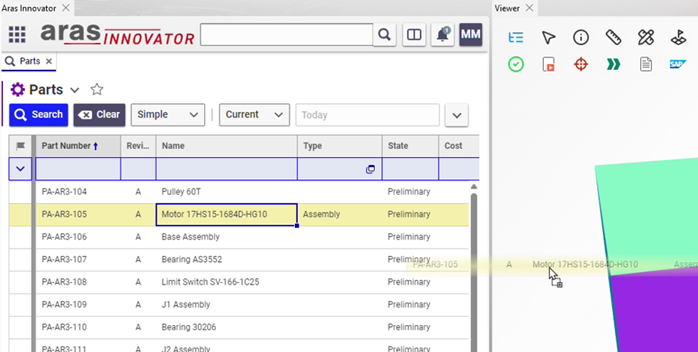
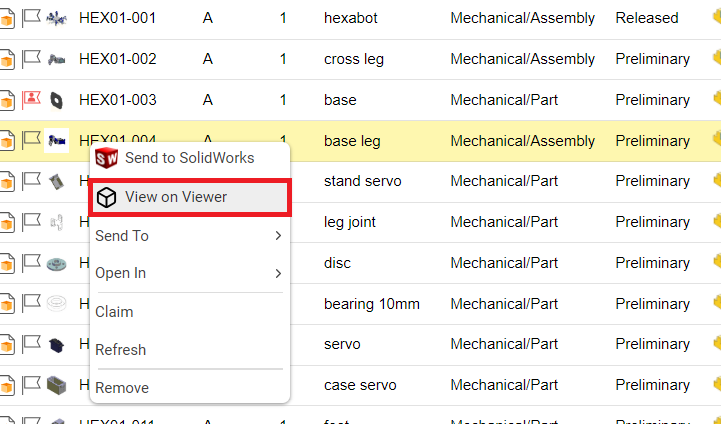
To load a 3D model, select a part or assembly from the Search or PLM tab. You can drag and drop it, right-click and choose the “Open in” option, or click the “Open in Viewer” button in PLM. The model will be rendered in 3D, enabling you to explore it from various angles.
- View by dragging and dropping
- View from the right-click menu
Interactive 3D View
Once the model is loaded, you can use standard mouse controls to zoom in and out, pan, and rotate the model for a detailed inspection. Additionally, the Viewer offers advanced tools such as measurement for precise distance and dimension checks, sectioning to view cross-sections of the model, and move functionality to reposition components. These features enable a deeper and more interactive exploration of the 3D model.
Camera Projections
In the Viewer, you can switch between different viewing perspectives to adjust the way the 3D model is displayed:
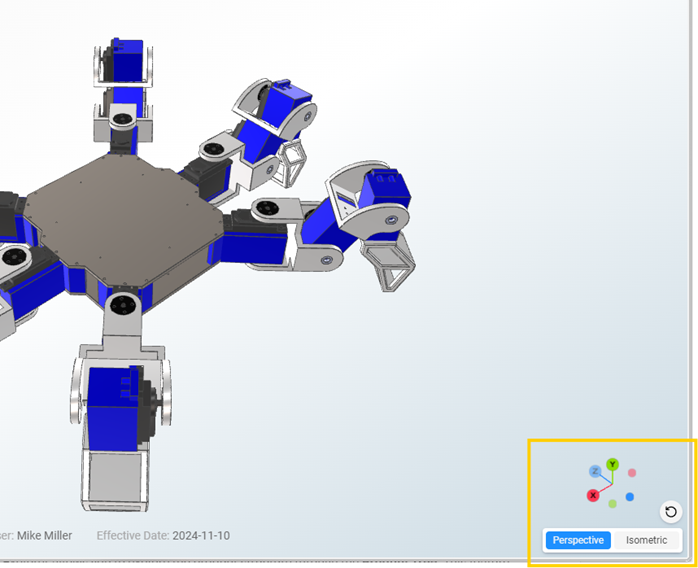
- Perspective: This view mode shows the model with depth and realism, where objects further away appear smaller, mimicking how the human eye perceives the real world. This is ideal for a more natural representation of the model.
- Isometric: The Isometric view displays the model with parallel lines, maintaining the same scale and proportions regardless of the object’s distance. This view is perfect for technical drawings and precise measurements as it eliminates distortion.
- Additionally, there is a Reset 3D View button, which allows users to quickly return the model to its default orientation, resetting the perspective or isometric view to the initial position for easy navigation and consistent viewing.