Navigating the Viewer Tabs
DAIMIA Connector uses multiple tabs to organize different functions. Each tab allows you to perform specific tasks related to your PLM data and 3D model visualization.
You can enable data flow between tabs using the drag & drop feature. For example, you can drag a part file listed in the Search tab and drop it into the Viewer tab to view it.
Aras Tab
- The Aras Tab lets you browse and select items from your PLM system. You can explore parts, assemblies, and documents, and view their metadata and relationships. If you need to reach your PLM, you don’t need to go through any browser since it’s available inside DAIMIA connector.
Viewer Tab
- The Viewer Tab is where you visualize 3D models. You can rotate, zoom, and pan the models, and interact with product data in real time. You can load and view parts or assemblies in 3D.
Search Tab
- The Search Tab enables you to instantly search for specific parts, assemblies, or documents. You can use the same search criteria with Aras, such as part numbers, names, or metadata fields, to locate items in the PLM system. Additionally, you can add custom columns from the ItemType listing screen to quick search module.
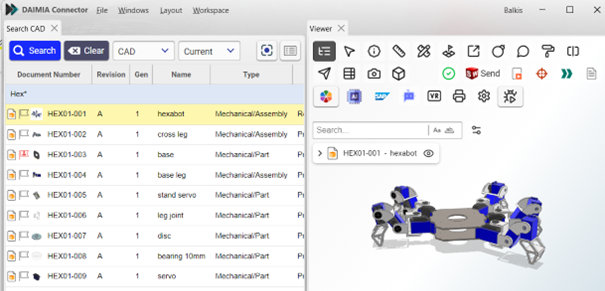
- In the search screen, you can access up-to-date PLM data. The listing criteria and columns maintain the same functionality as Aras search features. For example, a search with criteria like HEX* allows you to quickly find parts in bulk.
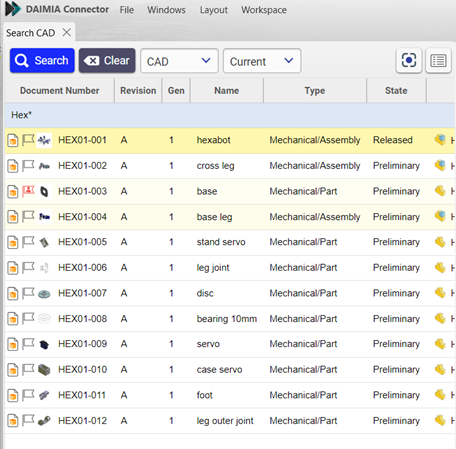
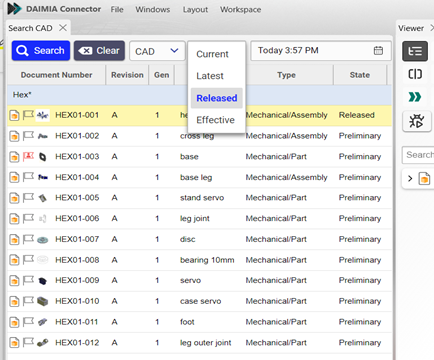
- You can filter parts based on their state and status using:
- Current: Displays the most up-to-date version of a part, reflecting the latest changes.
- Latest: Shows the most recent version or revision of the part, including any updates.
- Released: Filters parts that have been officially released for production or use.
- Effective: Displays parts that are currently valid and active, based on their status and the defined timeline.
- The Search module includes features to refine your search:
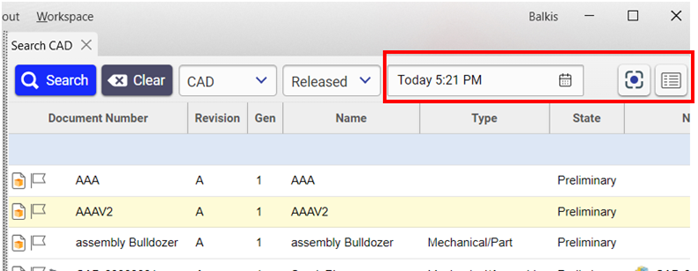
- Date Selection: This allows you to filter results based on specific dates. You can set a date range or select a specific date to find parts, assemblies, or documents that were created or modified during that time.
- Column Selection: This feature allows you to customize the columns displayed in the search results. You can choose which data fields (such as part number, name, status, etc.) you want to view, providing a more tailored and efficient search experience.
- Preview Section: By selecting the Preview option, you can quickly view a summary or preview of the selected item without having to open it in full. This allows for faster review of relevant data, making it easier to assess the item before taking further action.
These tools help streamline the search process and enhance the user’s ability to find and manage the necessary parts, assemblies, or documents efficiently.
Properties Tab
- The Properties Tab displays detailed metadata and properties for the selected item. Here you can view and edit the information associated with a part, assembly, or document, such as its part/cad/document number, versions, description, status, and more.

- The Properties module displays the PLM information and properties of selected parts or assemblies within the application. It shows details such as:
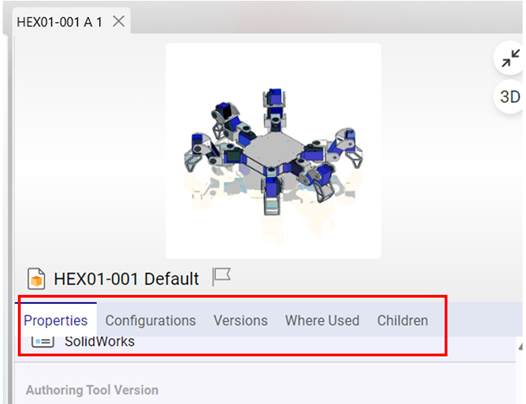
- Version: The version or revision of the part or assembly, reflecting the most current updates.
- Where Used: Displays a list of assemblies or parts where the selected item is used, providing context to its role in the product structure.
- Children: Shows any subcomponents or related parts that are associated with the selected assembly, helping users understand the hierarchical relationships.
- Configurations: Lists the different configurations of the selected part or assembly, allowing users to see how the part can be configured in various scenarios.
Additionally, if the properties include a static 3D preview and it has been defined, a 3D visual representation of the item will be displayed.
Product Structure Tab
Product Structure Tab displays the structure of Parts and CAD data in PLM and can send data to the CAD system if needed.
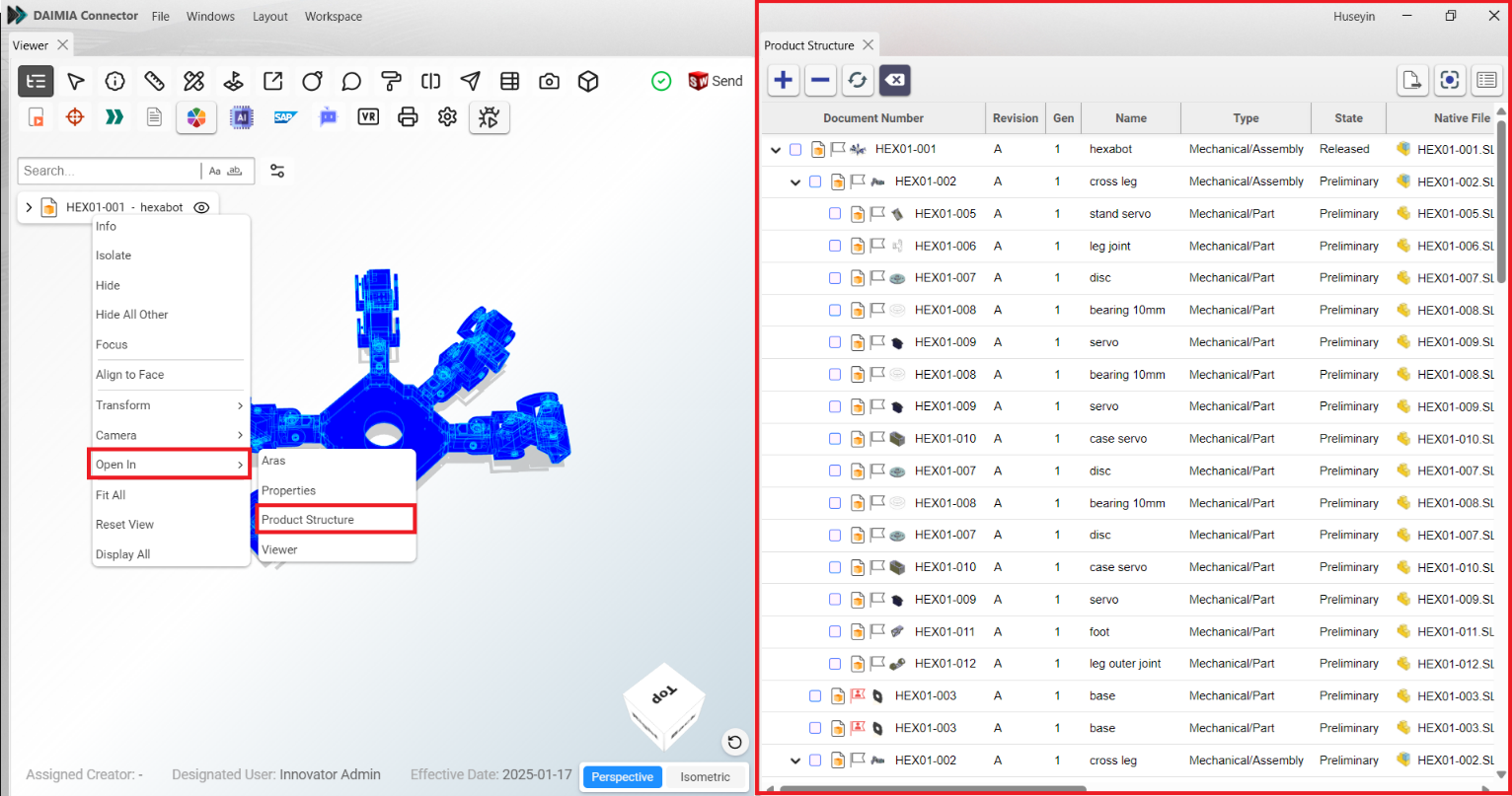
The Product Structure menu group contains several functions to manage and interact with the product data:
- Expand/Collapse buttons: () Use the plus (+) and minus (-) buttons to expand or collapse the product tree, allowing users to view or hide different levels of the structure.
- Refresh button: Resets the product structure to its default view, clearing any changes made to the current display.
- Delete button: Clears the structure, removing any selections or modifications made in the product structure view.
- Open CAD File button: Sends the selected files to the CAD system, where the native file will open. The system automatically identifies the appropriate CAD platform to open the file on.
- Columns button: Allows you to configure which columns are displayed in the product structure listing, helping users tailor the view to their needs.
- Open Preview button: Displays the properties of the selected parts in the interactive preview section on the right, providing a detailed view of the part’s attributes.